Skip to content

Publishing and speed

WordPress rollback built into every publish

DJIA Builder compiles each publish into a release. The last ten stay on disk. Making an earlier one active again takes one step from the dashboard, the Go live screen, the REST API, WP-CLI or an AI tool you allow.

Staging, preview links and a route-by-route compare with WordPress let you check a template before visitors see it.

Live r12r13
Example content
Ten releases on disk and one live pointerSchematic
  1. Release4
  2. Release5
  3. Release6
  4. Release7
  5. Release8
  6. Release9
  7. Release10
  8. Release11
  9. Release12
  10. Release13
Build14

FailedLive release unchanged

Each bar is one part of a release, such as compiled pages, templates, global styles or site code.

Posts, products, ordersNot part of a release. A rollback leaves them as they are.

Press a release to move the pointer there.

Live release: 13

Ten releases sit in a row and the live pointer is on the newest. A publish builds release 13 in a hidden folder, checks every part and moves the pointer to it, and the oldest release is dropped, so ten stay on disk. A later build that fails a check stays aside and the pointer does not move. Roll back moves the pointer to the previous release; posts, products and orders below the row do not change. In this example you can press any release, with the mouse, touch or the arrow keys, to move the pointer there, and Roll back returns it to the release that was live before.

What happens when you publish

DJIA Builder validates and compiles the page, then writes a new release in a hidden folder and loads every file back to check it. Only then does it move the folder into place and switch the site to the new release in one step. If any step fails, visitors keep getting the current release.

Diagram: one publish, step by stepSchematic
  1. Publish
  2. Validate and compile
  3. Build in a hidden folder
  4. Load every file back
  5. Move into place
  6. Switch the pointer
  7. If a step fails, the live release stays unchanged.
One at a time.
Publishes run one after another, so editors can't overwrite each other's release.
Global styles too.
Publishing global styles or site code recompiles every published page into one new release.
After updates.
When the plugin or element code changes, published pages are rebuilt in the background into a new release.

Ten releases, five ways back

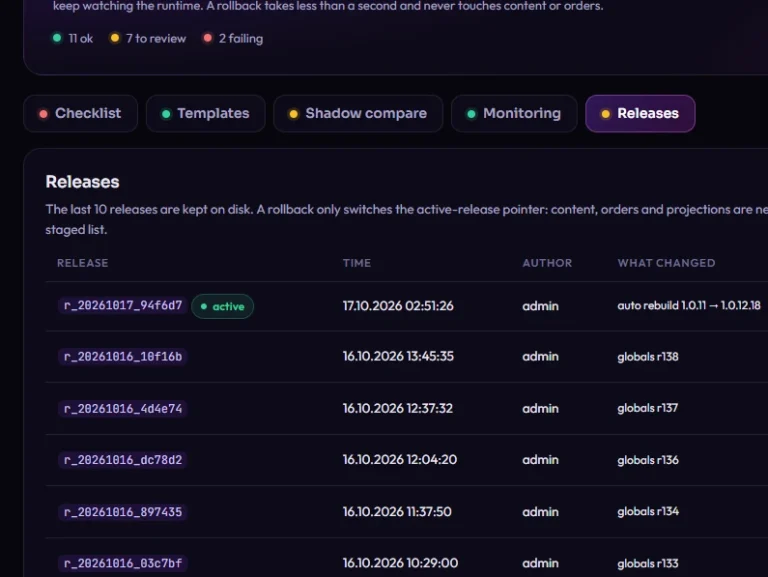
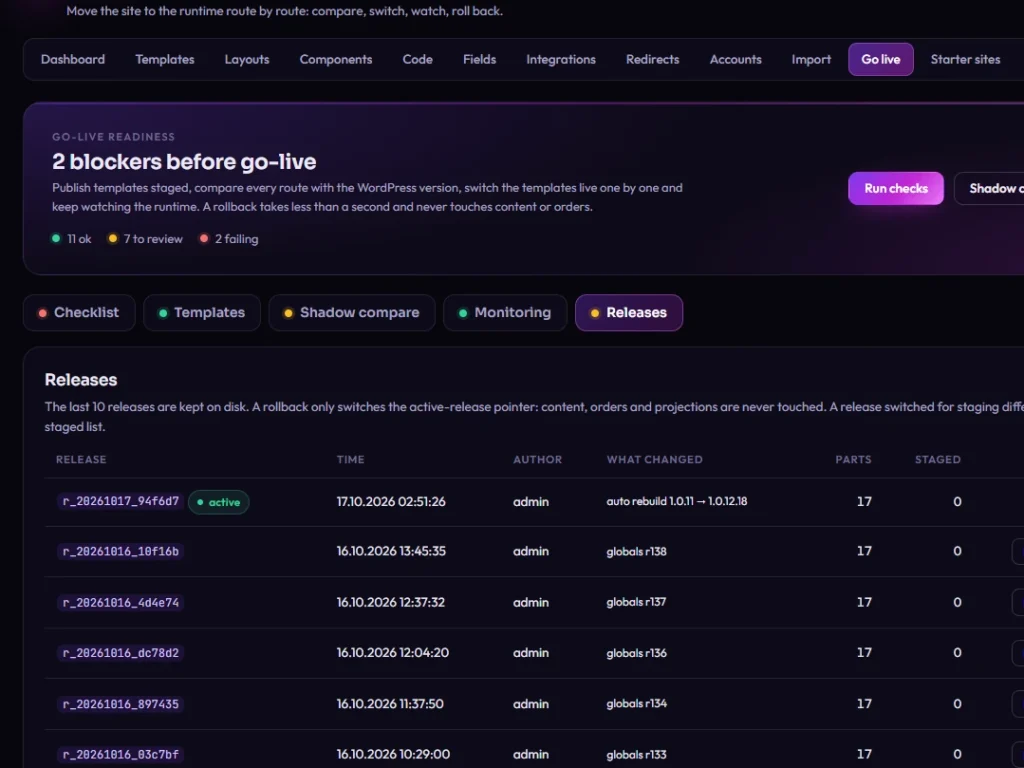
The last ten releases stay on disk with their time, author and a note on what changed. Make any of them active again from:

  • the Dashboard release list, with one click and a confirmation;
  • Go live → Releases, next to the rollback check;
  • the REST API, POST /wp-json/djia-builder/v1/releases/rollback, for users who can publish pages;
  • WP-CLI, wp djb release rollback [<release-id>], which goes to the previous release when you give no ID;
  • the MCP server, only when publishing over MCP is allowed and each call carries an explicit confirmation.

Restoring a release with different global styles or site code needs a user who may edit theme options.

DJIA Builder 1.0.18.5 – Go live: Releases
DJIA Builder Go live, Releases tab
Go live → Releases: the active release and Roll back on the others.

What a rollback changes

Compiled pages, templates, layouts, global styles, site code and the list of staged documents switch back to that release. Posts, products, orders and other content stay as they are, because a rollback only moves the active-release pointer. Revisions that a kept release still uses are never pruned, and each page's published revision follows the release you switch to.
Test the rollback before you need it

The rollback check on the Go live screen, or wp djb release check, tries four builds that must fail and confirms the live release stays untouched. It then rolls back and forward again, timing both, and flags either switch that takes over a second. Visitors may see the previous release for that moment.

Stage a template before visitors see it

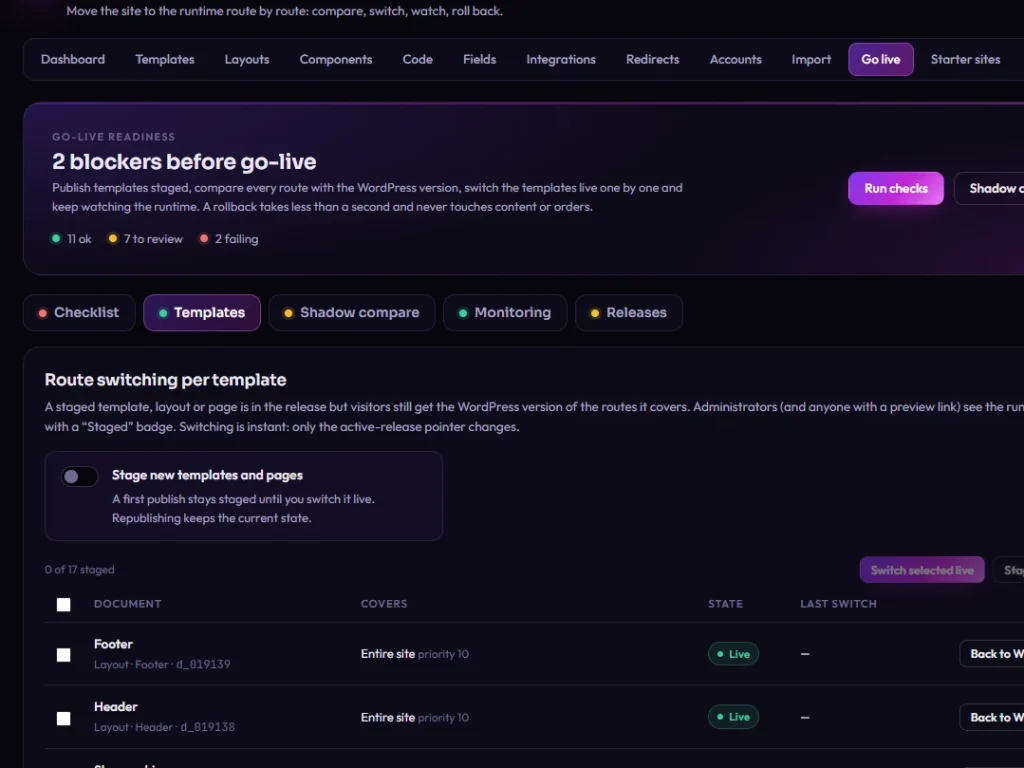
A staged page, template or layout is in the release, but visitors still get the WordPress version of the routes it covers. Logged-in administrators, and roles with full Builder access, see the runtime version with a “Staged” badge.

Live for everyone and Back to WordPress each write a new release that differs only in its staged list, and every switch is recorded in an audit log. Turn on Stage new templates and pages if every new design should start this way; it's off by default.

DJIA Builder 1.0.18.5 – Go live: Templates
DJIA Builder Go live, Templates tab
Go live → Templates.
Preview links

Share a signed link that shows staged documents to someone without an account. It expires after an hour, a day, three days or a week, and you can revoke every link issued so far at once.

Shadow compare

Shadow compare renders each route twice, through WordPress with your current theme and plugins and through the runtime with staged documents included, never from a cache. It reports differences in status codes, redirects, titles, descriptions, canonical and robots tags, hreflang, Open Graph, JSON-LD, headings, text, links, images and forms, ranked from critical to info. Routes come from your sitemap or a list you provide, and wp djb shadow compare runs it from the command line.

Transitional or strict

In transitional mode, the default, a route without a live Builder template, or one that isn't found, goes to WordPress, so a site moves over page by page. Strict mode lets the runtime answer every public route and return its own 404 for unknown ones. Paths listed under Paths always handled by WordPress, pages flagged Render with WordPress and staged documents go to WordPress in both modes.

Who answers a routeSchematic
Who answers a route in transitional mode and in strict mode
RouteTransitional (default)Strict
With a live Builder templateThe runtimeThe runtime
Without a live Builder templateWordPressThe runtime
Not foundWordPressThe runtime, with its own 404
Listed under Paths always handled by WordPress, flagged Render with WordPress, or stagedWordPressWordPress

The Go live checklist

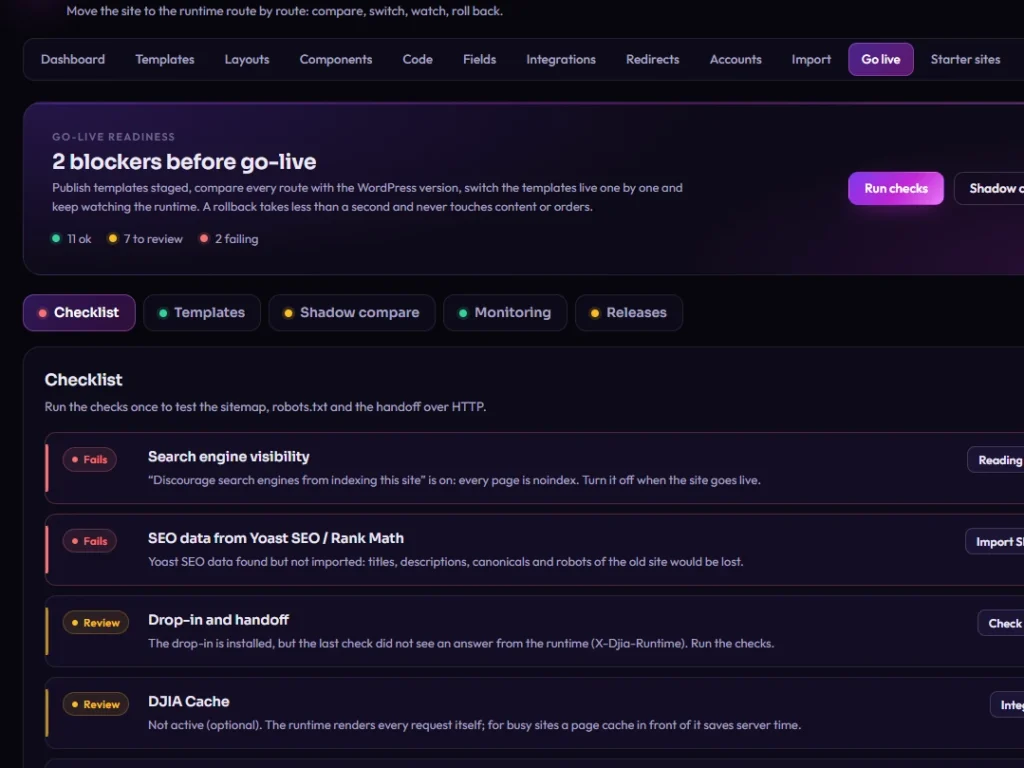
The checklist reads your setup and links each problem to the screen that fixes it. It covers permalinks, whether the drop-in hands requests to the runtime, cron, the sitemap and robots.txt, and search engine visibility. It also checks imported SEO data and redirects, staged documents, shadow compare results, the mode, the theme, the rollback check, editor or AI code in public files, HTTPS and the cache header of hashed files. Run it on the Go live screen or with wp djb golive check.

After launch, monitoring tracks runtime requests and errors. Administrators see a notice when errors spike: at least five errors that make up at least two percent of requests within 15 minutes.

DJIA Builder 1.0.18.5 – Go live: Checklist
DJIA Builder Go live, Checklist tab
Go live → Checklist.

Bring an existing site

  1. Export file, site bundle or this site's database
  2. Optional dry run
  3. Drafts with a report
  4. You publish
  5. A release you can roll back

Import from Bricks using an export file, a site bundle or this site's own database, even after the Bricks theme is removed. Breakpoints, color palettes, variables, global classes, theme styles, templates and pages come across. An import can run as a dry run first and arrives as drafts with a report. Running it again leaves documents you've edited since alone, unless you choose to overwrite them.

You can also turn HTML and CSS into elements, as editable structure or, for a hand-coded page, in a design mode that keeps its markup and stylesheet. Nothing goes live until you publish, and a published import is a release you can roll back like any other.

Bricks is a trademark of its owner. The import report lists what needs manual work.

Good to know

  • Releases are files in wp-content/djia-builder/, so that folder must be writable. On Nginx, add the rule the dashboard shows to block direct access to it.
  • Staged documents are visible only to logged-in administrators, full-access roles and people with a preview link.
  • With DJIA Cache, each publish or rollback sends one purge signal. Condition Publish this sentence only after a functional test of DJIA Builder 1.0.18.5 with DJIA Cache 1.3.0.12

See DJIA Builder on your own site

Start with one template. Stage it, compare it with what you have and switch it live when it's ready. Everything else keeps running as it does today.

DJIA Builder 1.0.18.5 – Go live
DJIA Builder Go live, Releases list